






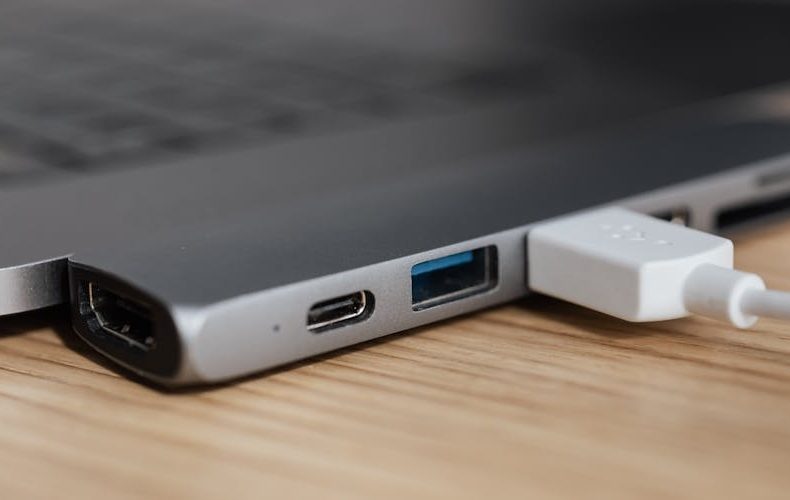
Here's something that trips up even tech savvy buyers: you plug a Thunderbolt 5 cable into a USB C port and it fits perfectly. Same connector, same reversible plug, same 24 pin layout. So they're identical, right? Not even close. The USB C vs Thunderbolt 5 difference is one of the most confusing gaps in consumer tech, and manufacturers aren't rushing to clarify it. I've watched friends drop $40 on a Satechi Thunderbolt 5 Pro Cable thinking it'd magically speed up their old USB 3.2 laptop. It didn't. The connector is just the physical shape, what matters is the protocol running through it.
I've been testing TB5 docks and cables since the first compatible laptops shipped in late 2025. The real world gap is staggering, 80 Gbps bidirectional versus 5 Gbps on a standard USB 3.2 Gen 1 port. A 16x difference. But raw specs only tell half the story. The real question is whether you actually need that bandwidth, or if you're paying a premium for speed you'll never saturate. This post breaks down what separates these two, where the money makes sense, and where you're honestly burning cash for bragging rights.
The USB C vs Thunderbolt 5 Difference Starts at the Protocol
USB C is a connector. Full stop. It's the oval shaped port on everything from $15 Bluetooth speakers to $4,000 MacBook Pros. Thunderbolt 5 is a protocol developed by Intel that uses that same USB C shape. Think of USB C as the highway and the protocol as the speed limit, a USB C port running USB 3.2 Gen 1 maxes at 5 Gbps, while the same looking port running Thunderbolt 5 hits 80 Gbps bidirectional (120 Gbps with Bandwidth Boost). Same road, wildly different traffic. The only visual clue? A tiny lightning bolt icon next to Thunderbolt ports.


Speed Numbers That Actually Matter
Transferring a 100GB video project over USB 3.2 Gen 1 takes roughly 3 minutes. Over Thunderbolt 5? About 10 seconds. Not marginal, a completely different workflow. USB4 Version 2.0 matches TB5's 80 Gbps on paper using PAM 3 signaling, but USB4 v2 compliance is optional. A manufacturer can slap "USB4" on a port and deliver anywhere from 20 to 80 Gbps. TB5 requires Intel certification, every certified port delivers full 80 Gbps, no exceptions. That mandatory floor is the single biggest practical USB C vs Thunderbolt 5 difference.


Display Support: Where Thunderbolt 5 Pulls Away
Multi monitor users, pay attention. TB5 drives two 8K displays at 60Hz, or three 4K monitors at 144Hz, through one cable. Even a single 1080p panel at 540Hz for competitive gamers. Standard USB C with DisplayPort Alt Mode? Typically one 4K at 60Hz. I tested a CalDigit TS5 Plus ($500, 20 ports) on a MacBook Pro M5 Max, dual 6K Studio Displays ran without a stutter while I backed up to an NVMe enclosure simultaneously. Try that on USB 3.2 and you'll get a slideshow.

Power Delivery and PCIe Tunneling
Thunderbolt 5 supports up to 240W charging through a single cable, enough for a beefy 16 inch gaming laptop running external displays and storage simultaneously. Standard USB C PD tops at 100W. The Anker Prime TB5 dock pushes 140W to the host; most USB C hubs struggle past 65W. Then there's PCIe tunneling, TB5 gives external NVMe enclosures sequential reads above 6,000 MB/s, faster than most laptops' internal drives from two years ago. Standard USB 3.2 Gen 2×2 caps at roughly 2,000 MB/s. For video editors handling 50MP RAW files, that PCIe tunnel isn't a luxury. It's the reason to upgrade.

Thunderbolt 5 Devices Worth Buying Now
The ecosystem is maturing. Apple's MacBook Pro M5 Pro/Max (from $1,999, three TB5 ports, March 2026) is the obvious pick. MSI's Titan 18 HX targets creators. ASUS ROG Strix G18 with dual TB5 runs $3,089, steep, but genuinely a workstation in gaming clothing. For docks, Satechi's CubeDock ($399.99) handles multiple 8K monitors and 180W power delivery. CalDigit TS5 Plus at $500 remains the gold standard with 10GbE. Cables? Cheap, Satechi's TB5 Pro Cable is $39.99.

When Standard USB C Is Perfectly Fine
Not everyone needs 80 Gbps. Seriously. One external monitor, a keyboard, a mouse, occasional thumb drive transfers, USB 3.2 handles all of that without breaking a sweat. Phone charging? USB C at 30W is plenty. TB5 makes sense for daisy chaining peripherals, multi monitor setups, external NVMe editing, or eGPU workflows. If none of those describe your Tuesday afternoon, save the money. A $15 USB C cable does the exact same job as a $40 TB5 cable for basic charging and USB speed data.

The USB C vs Thunderbolt 5 Difference in Backward Compatibility
TB5 is backward compatible with Thunderbolt 4, Thunderbolt 3, USB4, USB 3.2, and USB 2.0. Plug a TB3 dock into a TB5 port, works at 40 Gbps. USB 3.2 flash drive? Works at USB 3.2 speeds. Nothing breaks. The other direction is where it stings. A TB5 device in a USB 3.2 port runs at USB 3.2 speeds, bottlenecked by the weakest link. This is why checking that lightning bolt icon matters before buying a $500 dock expecting full performance from a laptop with only USB 3.2 ports. I've seen that mistake cost people real money.

Do’s and Don’ts
The gap between a port that merely fits and a port that performs comes down to a handful of buying habits. These are the rules I follow after months of testing TB5 docks, cables, and laptops, plus the mistakes I keep watching people make. Check them against your setup before you spend a dime.
| Do’s | Don’ts |
|---|---|
| Check for the lightning bolt icon on your laptop port before buying Thunderbolt accessories | Don't assume every USB-C port supports Thunderbolt. most don't |
| Buy Intel-certified Thunderbolt 5 cables for guaranteed full-speed performance | Don't use cheap unrated USB-C cables for Thunderbolt 5. they'll bottleneck everything |
| Invest in TB5 if you run dual 4K+ monitors from a single port | Don't pay for a TB5 dock if you only use one 1080p display |
| Verify your laptop's USB-C port version in the actual spec sheet | Don't rely on the connector shape alone to determine capabilities |
| Use Thunderbolt 5 for external NVMe storage if you edit video professionally | Don't buy an eGPU enclosure without confirming PCIe tunneling support |
| Consider USB4 v2 as a more affordable alternative at 80 Gbps | Don't confuse USB4 v1 (40 Gbps) with USB4 v2 (80 Gbps) |
| Budget for the full ecosystem: cable ($40) + dock ($300-500) + laptop | Don't buy a TB5 dock for a laptop that only has USB 3.2 ports |
| Use TB5's 240W PD for charging power-hungry gaming laptops | Don't expect over 100W from standard USB-C PD without EPR |
| Daisy-chain TB5 devices to reduce cable clutter | Don't chain more than six devices. bandwidth splitting gets noticeable |
| Keep Thunderbolt firmware updated for security and compatibility | Don't skip firmware updates. TB controllers get real security fixes |

FAQs
Is Thunderbolt 5 the same as USB C?
No. USB C defines the plug shape and 24 pin layout, it's purely a physical connector. Thunderbolt 5 is a data protocol that runs through that connector. A USB C port might operate at 5 Gbps (USB 3.2) or 80 Gbps (Thunderbolt 5) and look completely identical. Check for the lightning bolt icon or read the spec sheet.
How fast is Thunderbolt 5 compared to USB 3.2?
TB5 delivers 80 Gbps bidirectional (120 Gbps with Bandwidth Boost), while USB 3.2 Gen 1 offers 5 Gbps and Gen 2×2 tops at 20 Gbps. Copying a 50GB folder takes about 5 seconds over TB5 versus over a minute on USB 3.2 Gen 1. That gap becomes impossible to ignore once you're moving large video files daily.
Do I need a special cable for Thunderbolt 5?
Yes. You need an active TB5 rated cable with electronics inside for signal integrity at those speeds. A regular USB C cable will physically connect but limit you to whatever slower protocol it supports. The Satechi TB5 Pro Cable at $39.99 is a solid certified option.
Is USB4 v2 the same as Thunderbolt 5?
Closely related but not identical. Both hit 80 Gbps using PAM 3 signaling. The key difference: TB5 requires Intel certification guaranteeing full performance on every port. USB4 v2 lets manufacturers implement partial speed tiers, a "USB4" device might deliver 20-80 Gbps, while TB5 always delivers 80 Gbps minimum.
Can I use Thunderbolt 5 accessories with older USB C ports?
Yes, backward compatibility is built in. A TB5 dock on a USB 3.2 port functions at USB 3.2 speeds. Nothing breaks, but you won't get the performance you paid for. Confirm your laptop has TB5 ports before investing in expensive peripherals.
Which laptops have Thunderbolt 5 in 2026?
Apple's MacBook Pro M5 Pro/Max ($1,999+) shipped March 2026 with three TB5 ports. MSI Titan 18 HX and ASUS ROG Strix G18 ($3,089) target power users. Lenovo, HP, and Dell have rolled out TB5 across workstation lines too. Budget laptops under $1,000 generally don't have it yet.
Is Thunderbolt 5 worth the extra cost?
Depends on your workflow. The USB C vs Thunderbolt 5 difference only matters if you're pushing real bandwidth, video editors, photographers tethering cameras, anyone running triple 4K monitors. For browsing, documents, and casual use, standard USB C handles everything fine. The TB5 ecosystem adds $400-600, so be honest about whether your tasks demand it.
Related Posts:





Twenty years from now you will be more disappointed by the things that you didn’t do than by the ones you did do. Sail away from the safe harbor.
 Get it on
  Download on the